Register a server
Bring an MCP server into the organization registry, from a catalog or by JSON.
There are two ways to register an MCP server, and the choice depends on where it is published.
Both require the Superadmin role and end in the same place: the server shows up on the registry's Installed tab.
The two paths
Use this when the server is published on Docker Hub or GitHub.
- Open the Docker Hub or GitHub tab.
- Search for the server by name.
- Click Install on its card.
- Review the window and click Install.
The platform fills in the description, version and repository from the published metadata. The window also lists the server's Environment Variables, such as access tokens; they are optional at this stage.
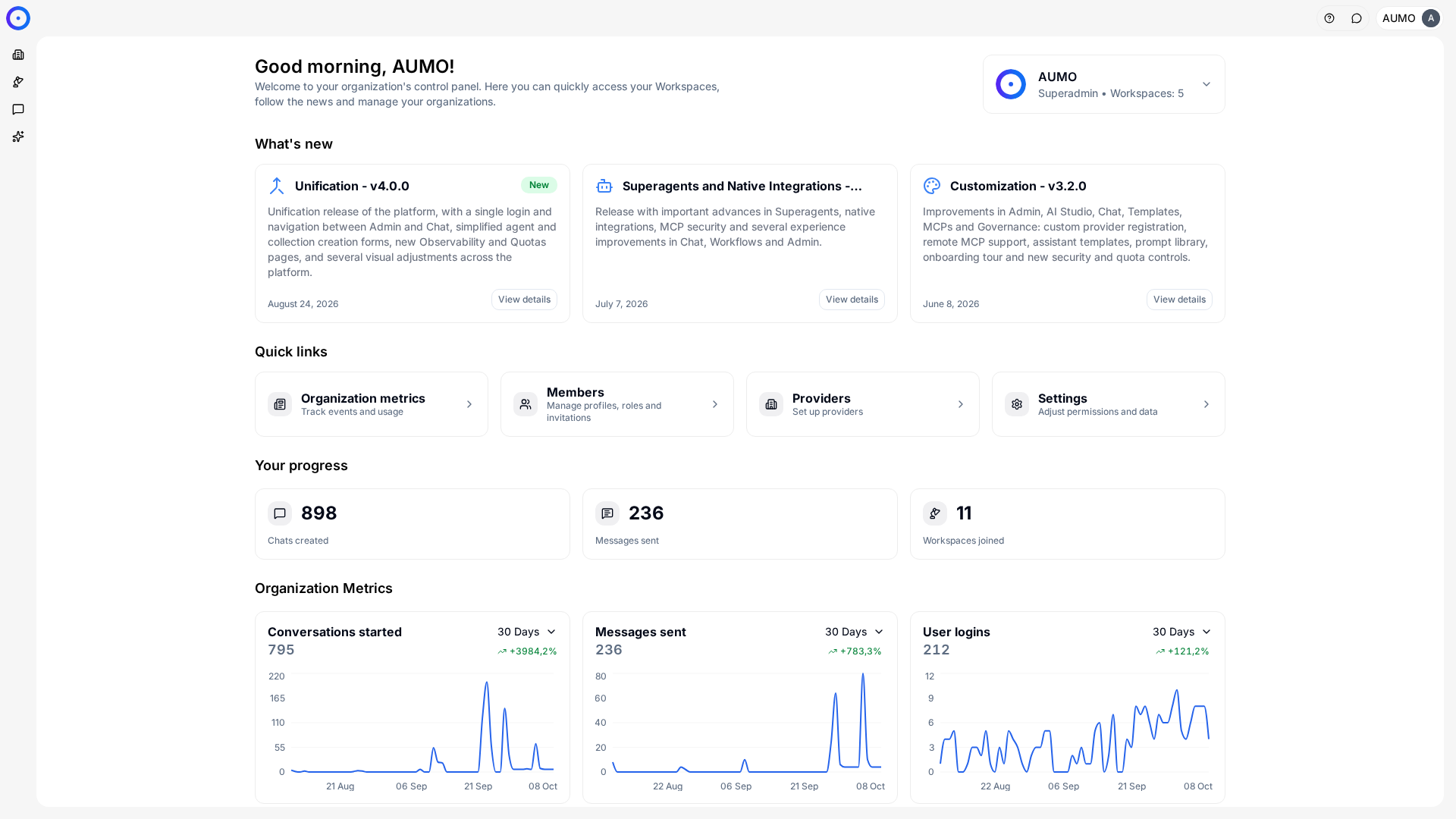
In the narrow bar on the left, click Organization.
After registering
The server goes into the registry, but no workspace reaches it yet. Availability is set under Organization › Workspaces, in each workspace's MCPs section.
Once made available, it shows up under Workspace › MCPs, on the Available tab, so the team can install it with its own name and configuration.
The same registry server can be installed several times in the same workspace, as long as each installation has a different name. That is how you point to two environments of the same system.
Before registering
An MCP gives the Agent the ability to act on external systems, not just read them. Registering a server of unknown origin exposes the organization to whatever that code does.
Check the result of the automatic analysis before releasing the server to teams. See Security scanner.
Next steps
- Release the server to teams in Workspaces.
- Compare with the Integrations path in MCPs and Integrations.