Run workflows
Fill in a published workflow's form and follow the result.
The Agents area, in the area bar, lists the Workflows published in the workspace and lets you run them.
Unlike Chat, there is no conversation here. You fill in a form, run it and get a result.
The area's name is misleading: it lists Workflows, not conversational Agents. Those are picked from the selector inside the Chat screen.
The list
The screen shows the available Workflows, with search by name and each one's description.
The sidebar shows the ones you have already run and the recent runs. On your first visit it is empty, with a notice that items appear after the first run.
Run
Opening a Workflow shows the input form, built from what its creator declared in the Input node. The fields and their descriptions come from there.
Fill in the fields under User inputs and click the run button (▶) in the corner of the card. Required fields left empty disable the button.
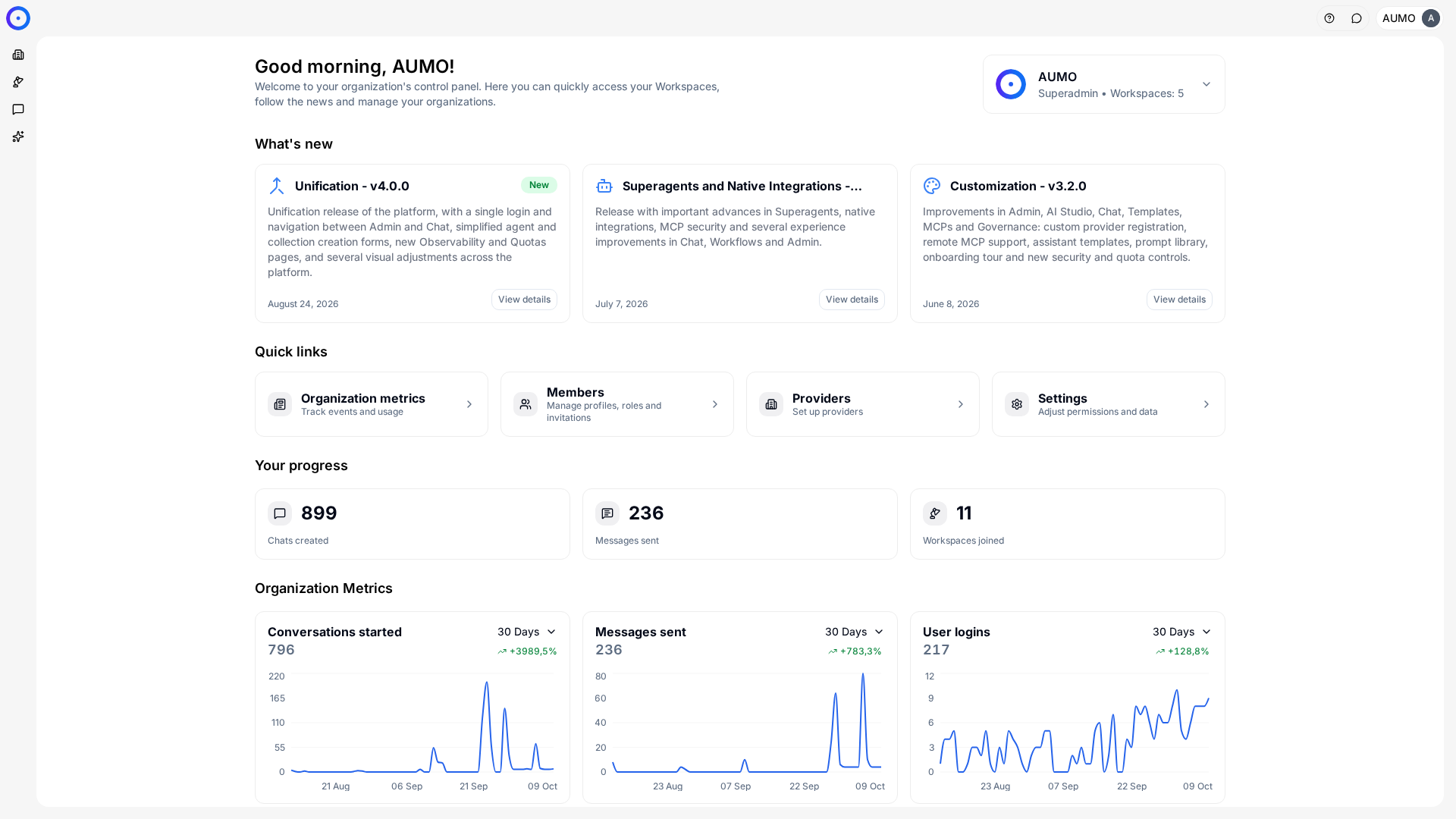
In the narrow bar on the left, click Agents.
Follow
While it runs, the screen shows progress by step. Workflows with several steps take longer than a chat message, and that is expected.
At the end, the result appears according to what the Output node defines: text, a data structure or a downloadable file.
When something goes wrong
A run that fails stops at the problematic step and shows where it stopped.
There is little to fix on your side: the form is the only input you control. Check that the values you entered are in the expected format and, if the error persists, take the case to whoever maintains the Workflow, with the run's identifier.
Versions
A run uses the Workflow version that is published at the time it runs.
The sidebar marks runs made with an earlier version. When you compare two different results for the same input, that mark is usually the explanation.
Next steps
- Understand when a Workflow is the right tool in Workflows.
- For builders, the path is in Build on the canvas.