Your first agent
Create a collection, publish an agent that answers from it and chat with it in Chat.
This tutorial walks through the platform end to end in one workspace: you create a Collection with a few documents, create an Agent backed by it and chat with it in Chat.
By the end you will have a published agent that answers from your files, and you will have seen where each step lives in Admin.
Prerequisites
- Access to a workspace with the Owner, Curator or Editor role. Auditor and User are read-only.
- At least one model enabled in the workspace, under Settings › Models. Without a model, the agent form won't let you save.
- Two or three test files with real content. PDF, DOCX or TXT will do. Short texts work best for checking the answer.
Create the collection
In the Workspace area, open Collections and click + Collection.
Fill in the Name and, optionally, the Description. The description doesn't change search. It exists so someone else understands what's inside six months from now.
Open Add files and select your documents. The counter next to the section shows how many files are ready to upload.
Click Create.
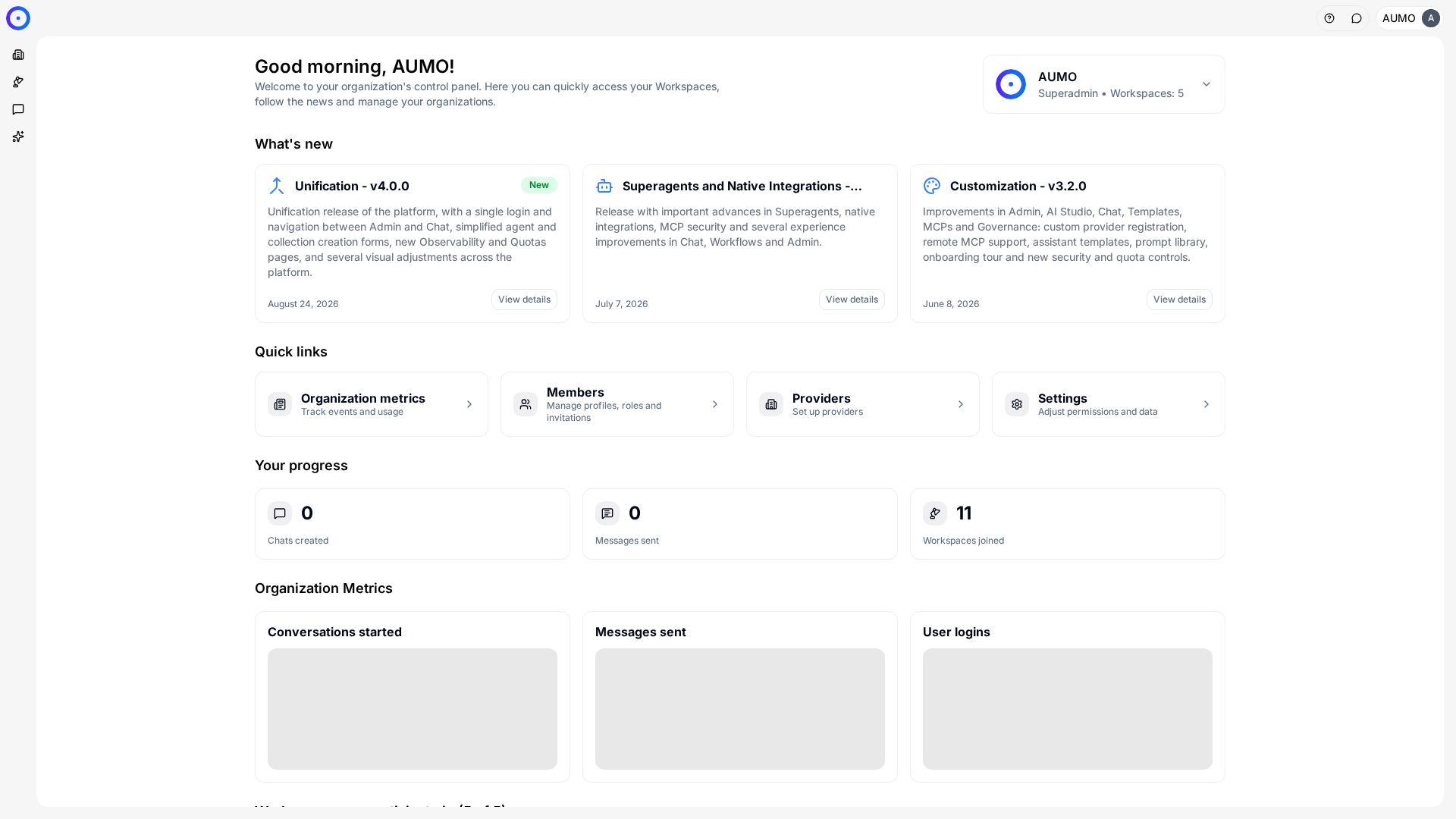
In the narrow bar on the left, click Workspace.
Wait for indexing to finish
The collection opens on the Files tab, with one row per document and the state of each. Documents go through Queued, Extracting and Indexing until they reach Extracted.
Only Extracted documents are used in answers. The time depends on the file's size and type; scanned PDFs take longer because they go through text extraction.
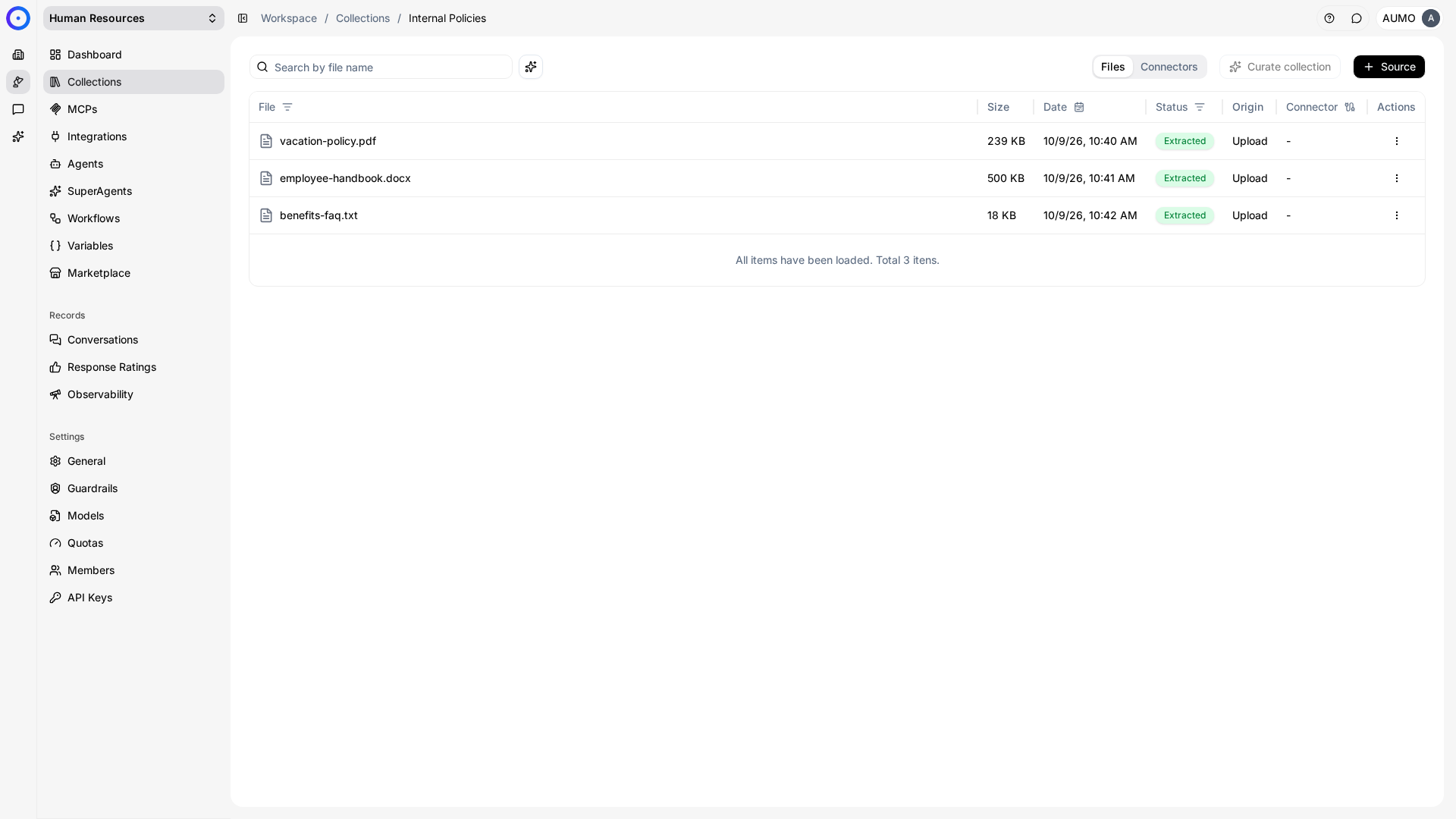
A document in Extraction failed or Indexing failed is not used in answers and doesn't recover on its own. Remove the file and upload it again, preferably in a format with selectable text.
Create the agent
Open Agents in the same workspace, click + Agent and choose Create from scratch.
Under Basic data, fill in the Name, choose the Model and write a Description. The name and description are what people see when choosing the agent in Chat, so describe its job, not the technology.
Under User response prompt, adjust the instructions. The field comes with a default text that works; for your first agent, add a sentence saying where it should take its answers from.
The walkthrough below also covers the next two steps: attaching the collection and publishing.
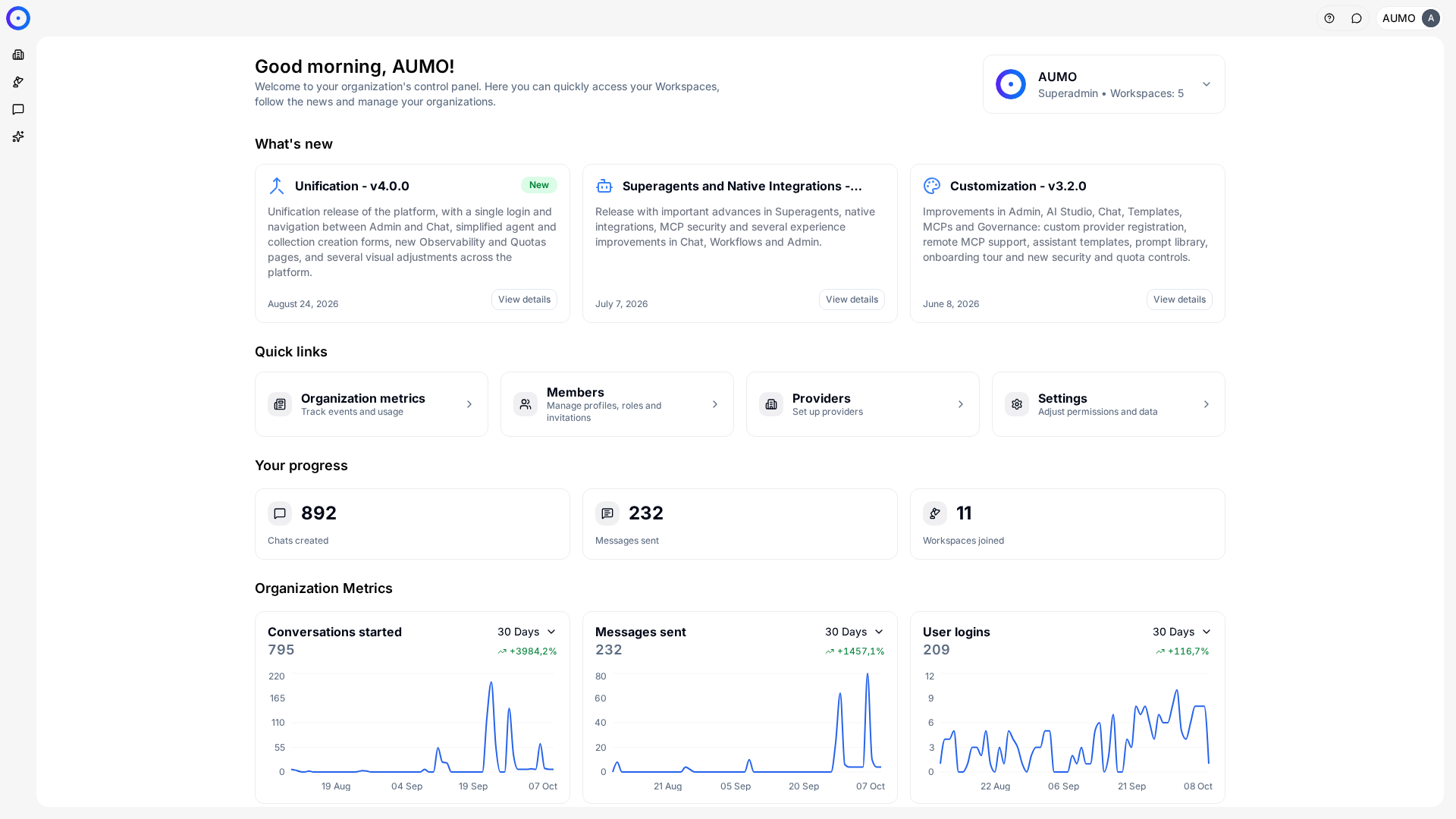
In the narrow bar on the left, click Workspace.
Attach the collection to the agent
Still in the form, open the Collections section and add the collection you created.
This association is what turns on RAG. There is no separate "enable search" switch. With at least one collection, the Search and context settings appear right below. With none, the agent answers using only the model, the tools and the prompt.
The MCPs, Sandbox, Integrations, Sub-agents and Advanced options sections can stay as they are for this first agent.
Publish
In the form footer, check Publish on save and click Save and publish.
Without that box, the button reads Save draft and the agent stays a draft: it shows up in the Admin Agents list, but not in Chat. Publishing is what makes it visible to the people in the workspace.
Chat with it
Go to the Chat area and check, at the top of the screen, that the workspace is the same and that the selected agent is the one you just published. The agent selector sits next to the workspace name.
Ask a question whose answer is in the documents you uploaded. Compare the answer with the source file: that is how you find out whether the right collection is attached and whether the prompt asks for the behavior you want.
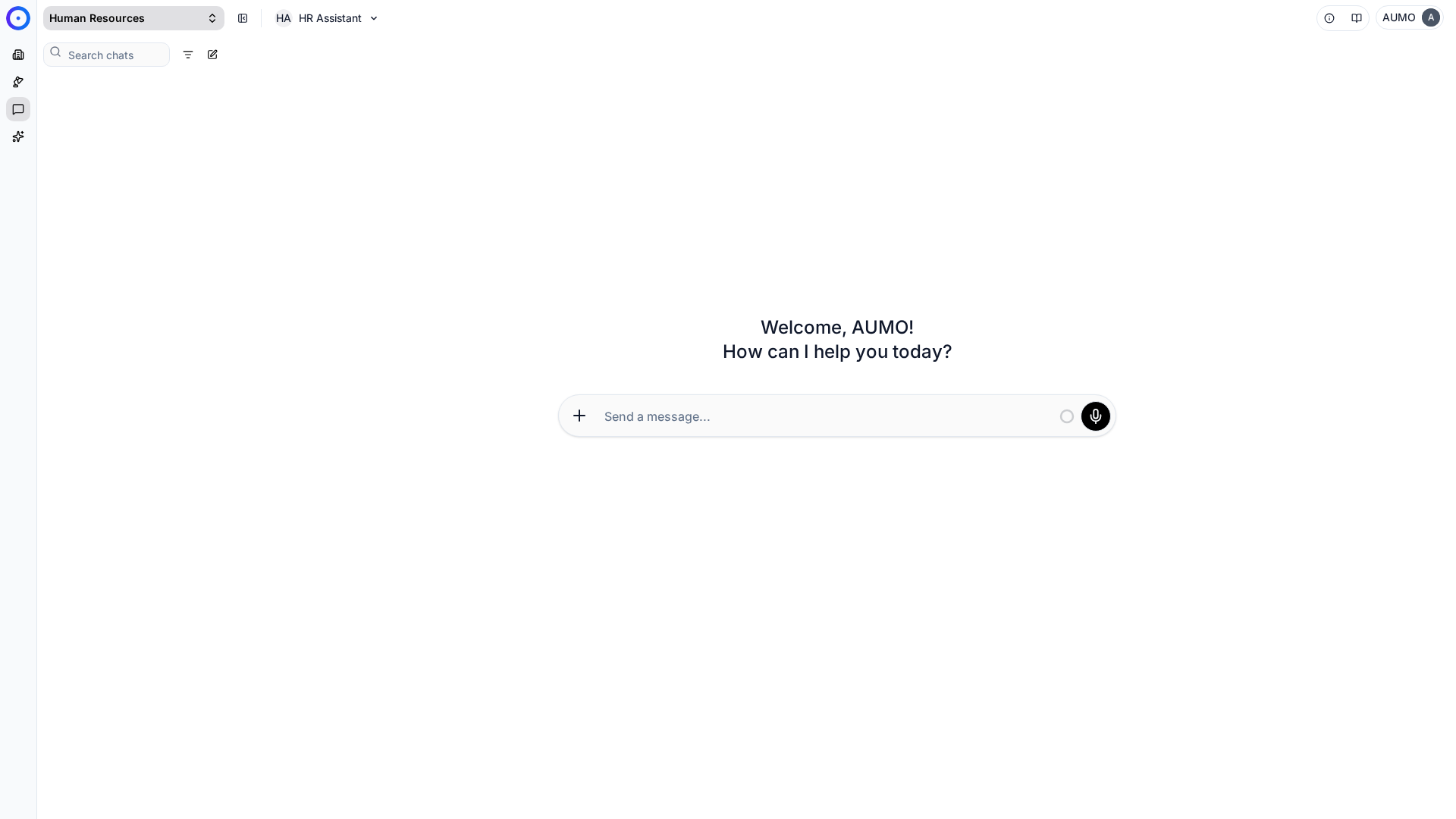
At the top of Chat, check the workspace and the selected agent. This selector is how you switch agents.
When the answer doesn't come from your documents
Three causes cover almost every case:
- No document is Extracted: go back to the collection and check each file's state.
- The collection isn't attached to the agent: open the agent and check the Collections section.
- The question doesn't match the text: search is by content, not by title. Ask using the terms that appear inside the document.
Next steps
- Follow the agent's usage under Records › Conversations and Records › Response Ratings, in the same workspace.
- Get to know the rest of the sidebar, and what changes between Organization and Workspace, in Navigating the platform.
- If an area showed up locked during the tutorial, the common cases are in Access and login.