Navigating the platform
The areas, what each sidebar contains and why you see fewer items than someone else.
The platform has two bars on the left. The narrow one, against the edge, picks the area. The wide one, next to it, lists the pages of that area.
Understanding this split answers most "where is that thing" questions. Almost everything you look for is in one of the two administrative areas, Organization or Workspace, and the difference between them is the scope of the setting.
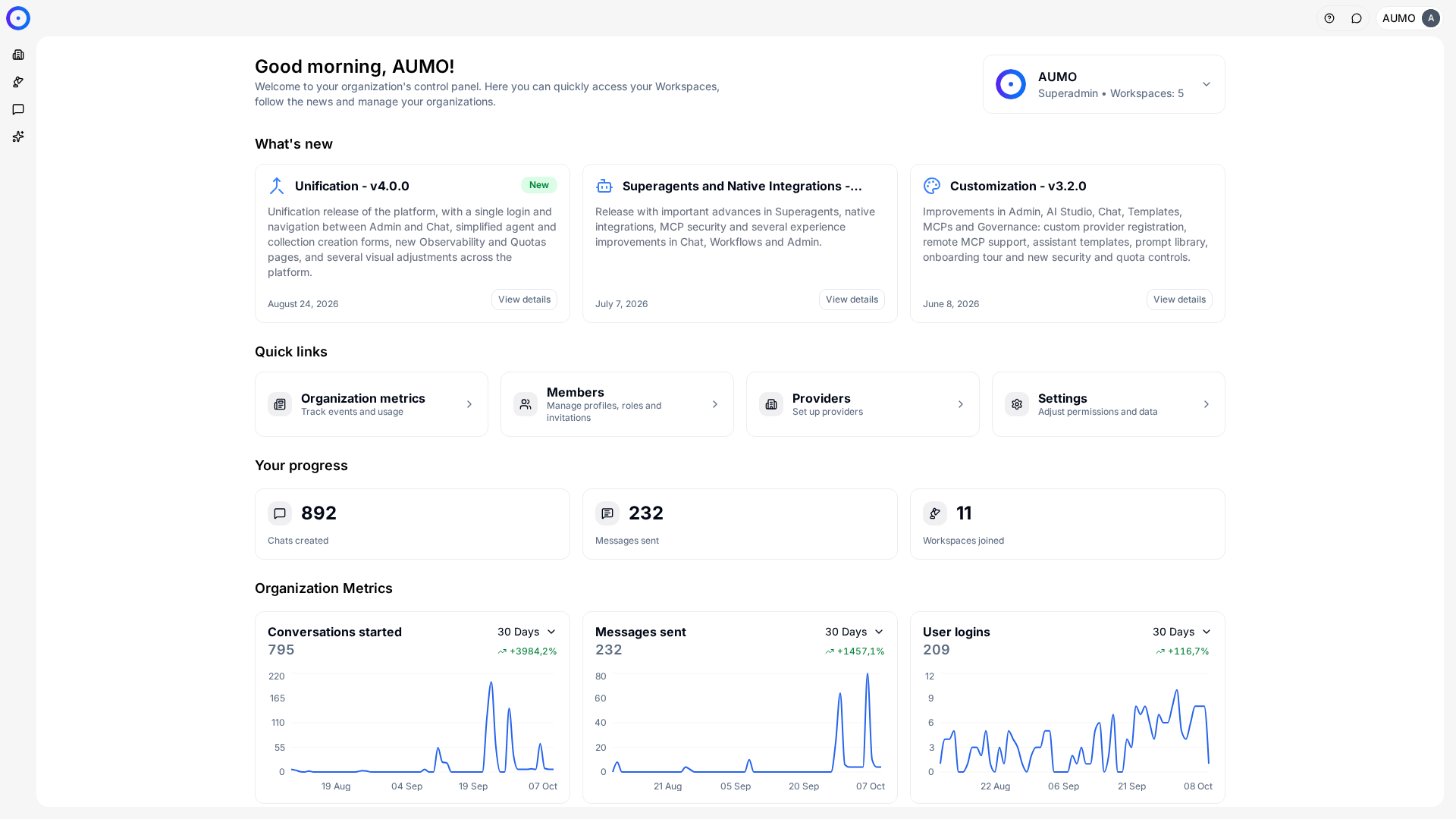
The narrow bar on the left picks the area: Organization, Workspace, Chat and Agents. The logo at the top brings you back to this home.
The areas
The narrow bar always shows the same destinations, in the same order, with the organization's logo at the top. Clicking the logo takes you back to the organization home.
- Organization: what applies to the whole company: AI providers, credentials, members, quotas and the list of workspaces.
- Workspace: what belongs to a team or project: Collections, Agents, Workflows, MCPs and that workspace's settings.
- Chat: day-to-day conversation with Agents.
- Agents: running published Workflows. You fill in an input form and get the result, instead of chatting.
Organization and Workspace live in the Admin module; Chat and Agents, in the Chat module. You move between them through the same bar, without signing in again.
Organization or Workspace: which one to use
The rule is scope. An Organization setting reaches every workspace; a Workspace setting stops at that workspace's boundaries.
Some capabilities exist at both levels, and that is intentional: the Organization keeps the approved catalog and the Workspace picks what to use from it. AI providers, MCPs and Integrations work this way.
The Organization sidebar
The top pages handle the organization's catalog and operations:
- Providers: AI model providers available to workspaces.
- SuperAgents: external agents, registered by URL, that the organization makes available to workspaces.
- Workspaces: creating and managing workspaces, including what each one receives.
- MCPs and Integrations: the registry of MCP servers and integrations that workspaces can install.
- Credentials: access secrets for external systems, stored once and reused.
- Observability: consumption, usage per model and execution tracing.
The Settings group closes the area with General, Members and Quotas.
The Workspace sidebar
At its top is the workspace selector: that is how you switch projects without leaving the page you're on. The following pages are the ones you use to build:
- Dashboard: the workspace's usage summary.
- Collections: the documents and connectors that feed the Agents' answers.
- MCPs and Integrations: the tools installed in this workspace.
- Agents and SuperAgents: the agents that show up in Chat.
- Workflows: automated flows built on a canvas.
- Variables: named values reused by Agents and Workflows.
- Marketplace: the library of prompt, agent and workflow templates.
Then come two groups. Records keeps what has already happened: Conversations, Response Ratings and Observability. Settings keeps the workspace's configuration: General, Guardrails, Models, Quotas, Members and API Keys. Guardrails holds the rules that block or anonymize sensitive data before it reaches the AI.
The top bar
Two things sit at the top of the screen. On the left, a breadcrumb. On the right, the controls that don't belong to any area: the shortcut to this documentation, the platform assistant button and the button with the organization's name.
The assistant opens a side chat panel that helps you build, analyze and manage workspaces without leaving the page.
The button with the organization's name opens the organization selector and, along with it, your menu. Appearance switches the theme and Language switches the interface language. Settings shows your profile: name, email, organization and role. The menu footer links to the Privacy Policy and the Terms of Use.
Administrative roles may see one more button in the bar, Logs, which opens execution traces.
Why you see fewer items
The sidebar shows only what your role allows. Two people in the same workspace can see different lists, and that is not a loading error.
The organization roles are Superadmin, Admin, Auditor and User. The workspace roles are Owner, Curator, Editor, Auditor and User. Organization roles see the organization's workspaces even without being members of them.
Next steps
- Build your first end-to-end flow in Your first agent.
- If an area shows up locked, see the common cases in Access and login.