Workspaces
Create workspaces and decide what each one receives from the organization's catalog.
Workspaces is the list of all of the organization's workspaces and the place where you control what each one receives.
This is where the company's catalog becomes a resource available to a team. A model registered under Providers only reaches an Agent after going through this screen.
The list
Each card shows the workspace's name, your role in it and how long ago it was created. Removed workspaces stay visible with the Workspace deleted badge.
The filter at the top splits the list by relationship:
- All: everything you can see in the organization.
- My workspaces: the ones you are a member of.
- Other workspaces: the ones you reach through your organization role, without being a member.
- Auditable: available to the Auditor role.
Create a workspace
Click + Workspace, enter the Workspace name and click Create Workspace. Only Superadmin and Admin create workspaces, and the counter at the top of the list shows how many more the organization can create.
Once created, you're taken straight to the new workspace's Dashboard.
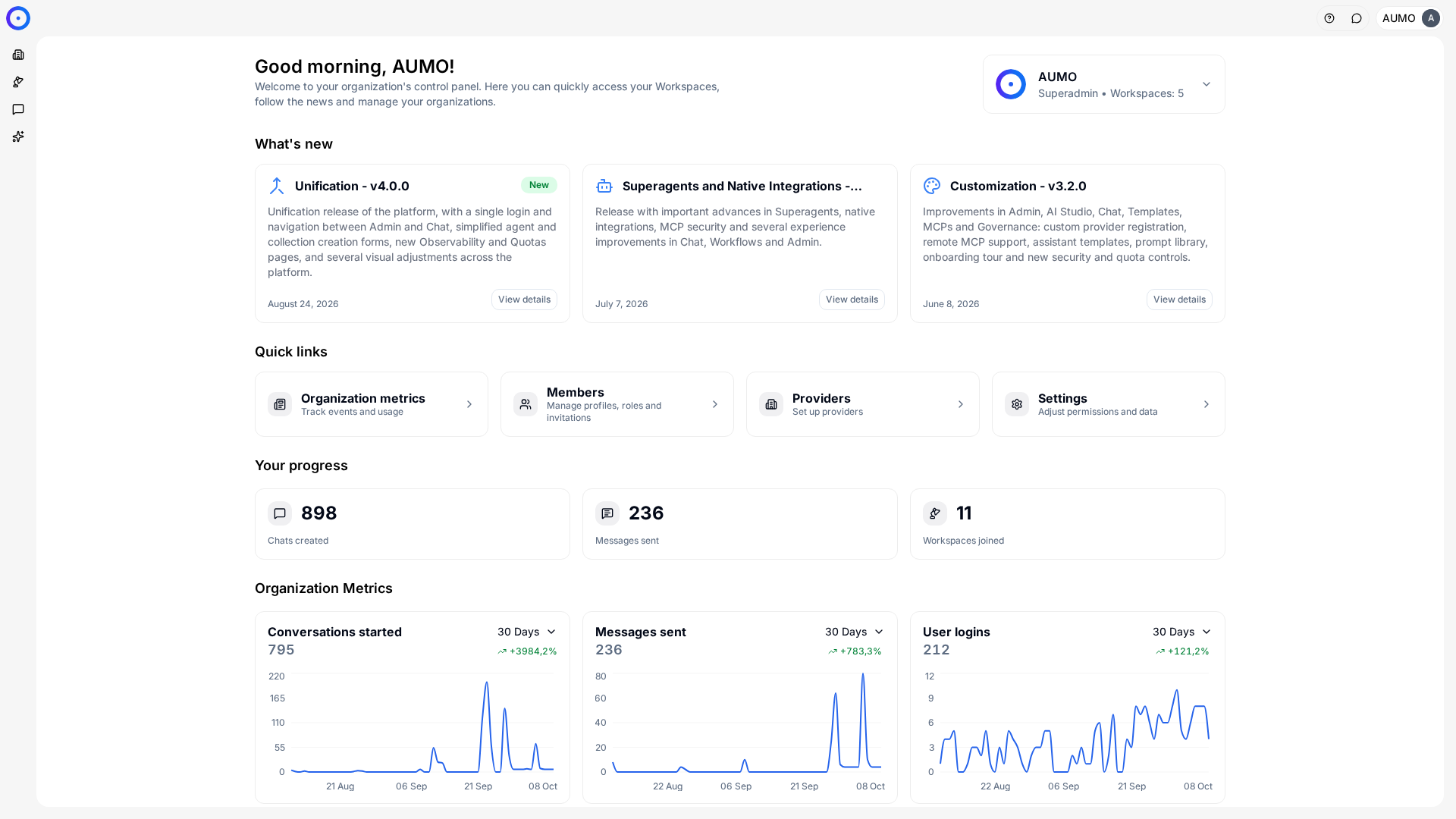
In the narrow bar on the left, click Organization.
A newly created workspace starts empty: no enabled models, no MCPs, no Integrations. It can't create Agents until it receives at least one model.
What to assign to a workspace
When you open a workspace on this screen, you find the tabs that control what it receives from the catalog:
- Models: which models, out of the organization's providers', become available there.
- SuperAgents: which external agents the team can use.
- MCP: which registry servers become installable.
- Credentials: the email credentials, with the sender that Workflows in that workspace use to send messages. Each one points to an SMTP credential registered in Credentials.
- Integrations: which registered integrations become available.
The Settings tab holds the rest of the workspace's configuration.
Assigning a model here is the step people tend to forget. A workspace without a model won't let you create an Agent, and the message on the creation screen doesn't explain that the cause is on this page.
Visibility
Each workspace has a visibility setting, which defines whether it shows up for non-members. It is changed in the workspace's action menu.
This doesn't replace permission: Superadmin, Admin and Auditor organization roles still reach any workspace.
Next steps
- Register the providers that feed the model list in Providers.
- Register the installable servers in MCPs.
- Understand the split between catalog and installation in Organizations and Workspaces.