Create an agent
Go through the creation form, section by section, until the agent is ready to publish.
The Create agent form is a single page with collapsible sections. You fill it in from top to bottom and only open what you'll use.
Before you start, confirm that the workspace has at least one model enabled under Settings › Models. Without one, the Model field stays empty and the form won't save.
To open the form, go to Workspace › Agents, click + Agent and choose Create from scratch. The other option, Create from a template (Beta), starts from a ready-made agent in the Marketplace.
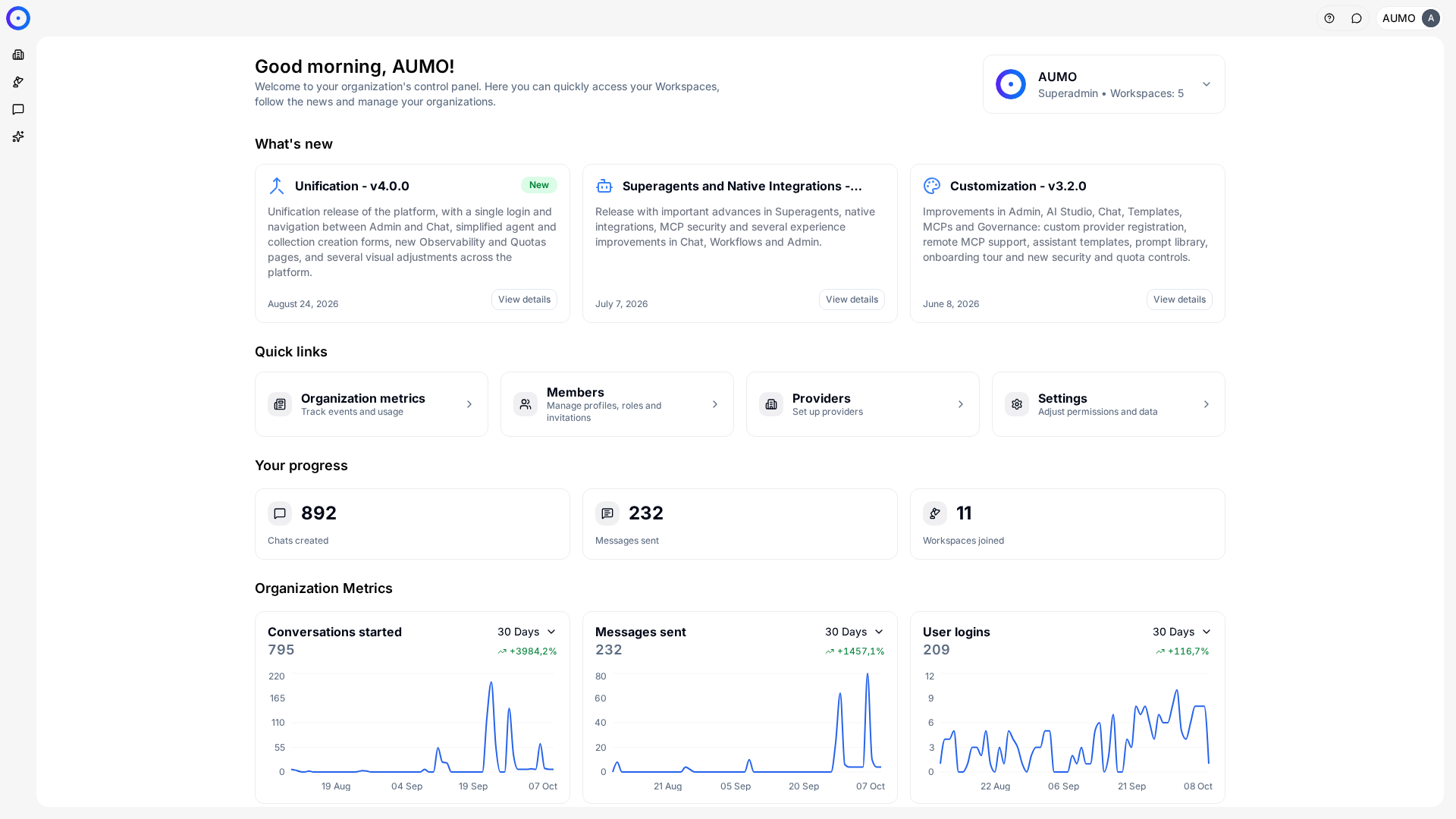
In the narrow bar on the left, click Workspace.
Basic data
Four fields, two of them required:
- Name: how the Agent shows up in the Chat selector.
- Model: which model it uses, out of those enabled in the workspace.
- Agent logo: optional, helps tell it apart visually in the list.
- Description: optional, but it is what people read to decide whether this is the Agent they want.
The name and description are the Agent's interface for people who didn't build it. Describe its job, such as "questions about the expense policy", not the technology.
User response prompt
The section comes pre-filled with a default text that works. The editor has a side-by-side preview and access to a Prompt Library.
What to put here is covered in Write the prompt.
Collections
Add the Collections this Agent should look up. This association, and nothing else, is what turns on knowledge search.
With at least one Collection, the search and context settings appear below. With none, the Agent answers using only the model, tools and prompt, and the form footer says so explicitly.
There is no "enable RAG" switch. The presence of Collections is the switch.
MCPs and Integrations
Check the tools this Agent can call, out of those installed in the workspace.
The MCPs section has the maximum iterations: how many times, in a single answer, the Agent can call tools before wrapping up. This prevents a loop when a tool returns something unexpected.
Installing an MCP in the workspace doesn't hand it to the Agent. It has to be checked here.
Sandbox
Gives the Agent a persistent environment to run commands and work with files. It comes Disabled; turn on Enable sandbox? only if the Agent's job needs it.
Sub-agents
Lets you expose this Agent as a tool and select other Agents for support.
It is useful for splitting responsibilities, such as one Agent that knows HR and another that knows the product catalog, instead of bloating a single prompt. The main Agent is still the one talking to the person.
Advanced options
- Temperature: how much the model varies between answers. Low values make answers more predictable and repeatable.
- Maximum tokens per answer: the length cutoff. Answers cut off mid-sentence are usually this field.
For your first Agent, the defaults are fine.
Save
In the footer, the button is Save draft. Checking Publish on save turns it into Save and publish. After saving, you go back to the Agents list. The difference is covered in Publish and maintain.
Next steps
- Write instructions that hold up in Write the prompt.
- Prepare the knowledge before publishing in Collections.