Introduction to Nodes
Nodes are the fundamental building blocks within the AI Studio. Each node represents a specific processing step, whether it's receiving information, processing it with Artificial Intelligence, executing programming logic, or integrating with external services.
Manipulating Nodes
Adding Nodes
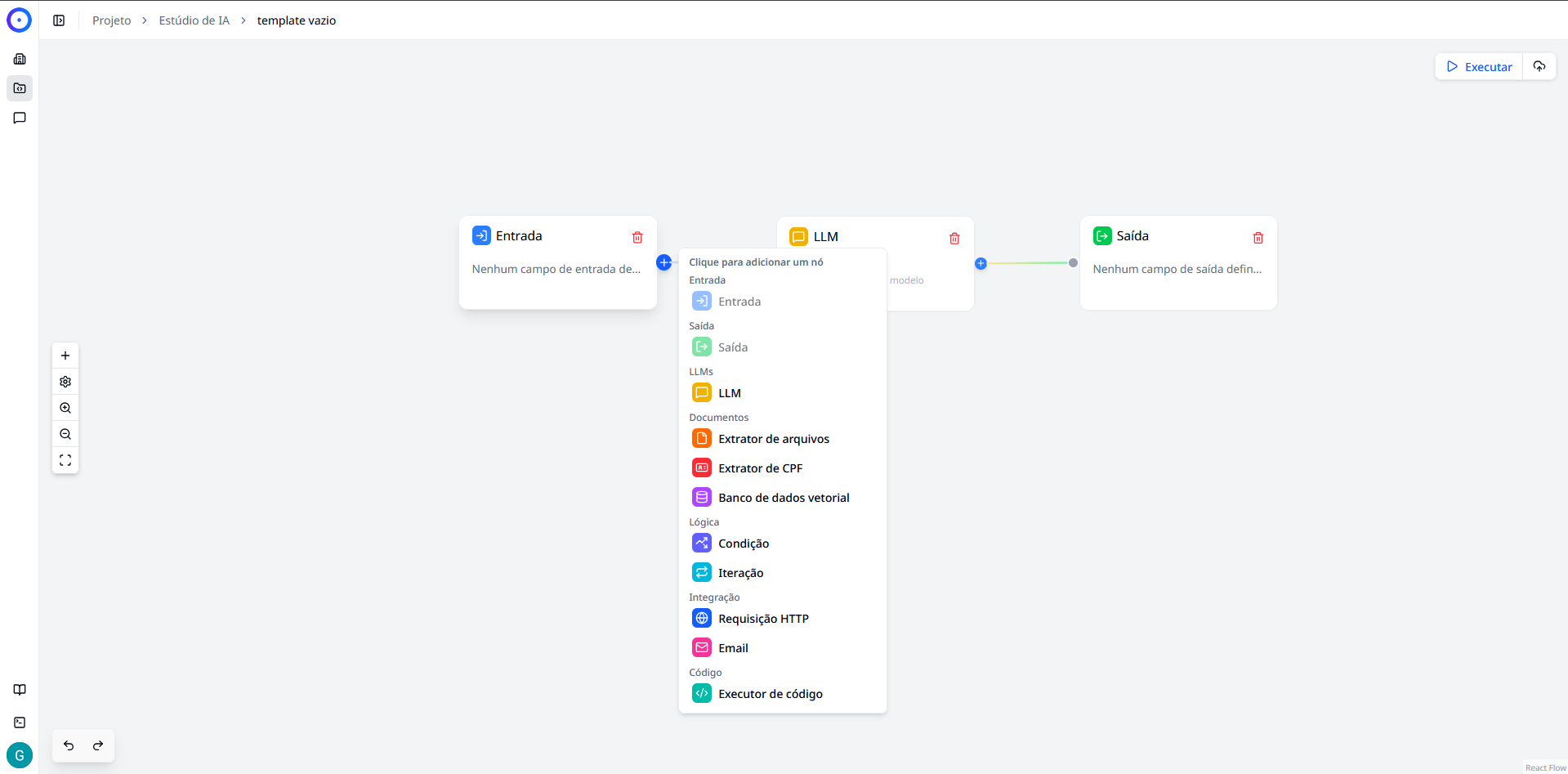
There are three main ways to add new nodes to your flow:
- Side Button: Click the (+) button on the left toolbar.
- Context Menu: Right-click on any empty area of the canvas.
- Connection Extension: Click the (+) that appears on the right side of an existing node.
All of these actions will open the Selection Menu, where you can choose the desired type of node.
Deleting Nodes
To remove a node from the flow:
- Click the Trash icon (🗑️) in the node header.
- Or select the node and press the
DeleteorBackspacekey on your keyboard.
Node Configuration
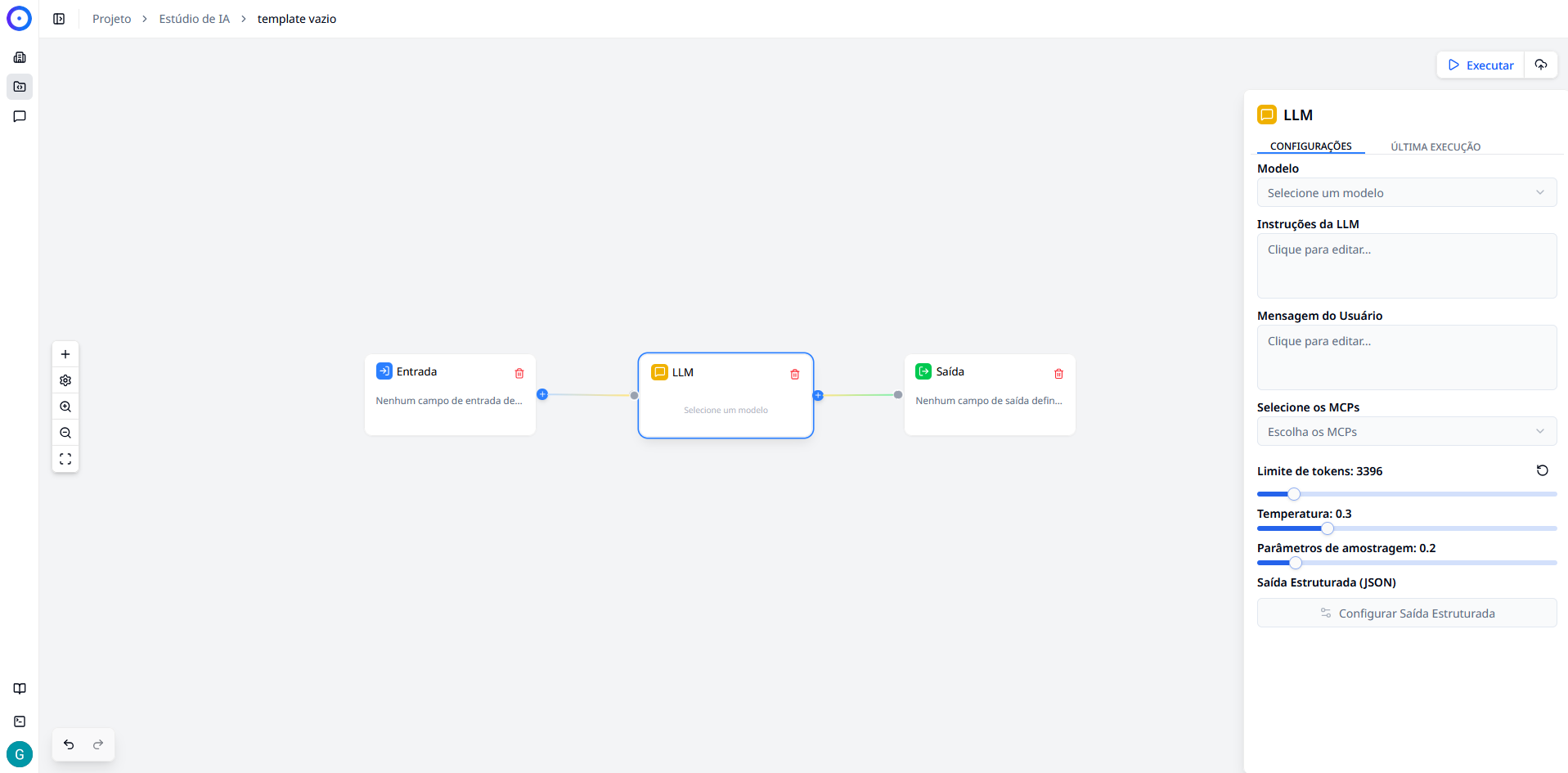
By clicking on any node on the canvas, the Configuration Panel automatically opens on the right side of the screen. It is in this panel that you define the specific parameters and behaviors of the selected node.
Referencing Variables (Menu /)
The great strength of the AI Studio is the ability to chain data together. You can use the output of any previous node (such as a variable from the Input node or the text generated by a LLM) within the configuration fields of the current node.
To insert a dynamic variable:
- Click on a text field in the configuration panel.
- Type the
/(slash) key to open the Variables Menu. - Select the desired variable from the list.
Below is an example of editing the user message in a LLM:
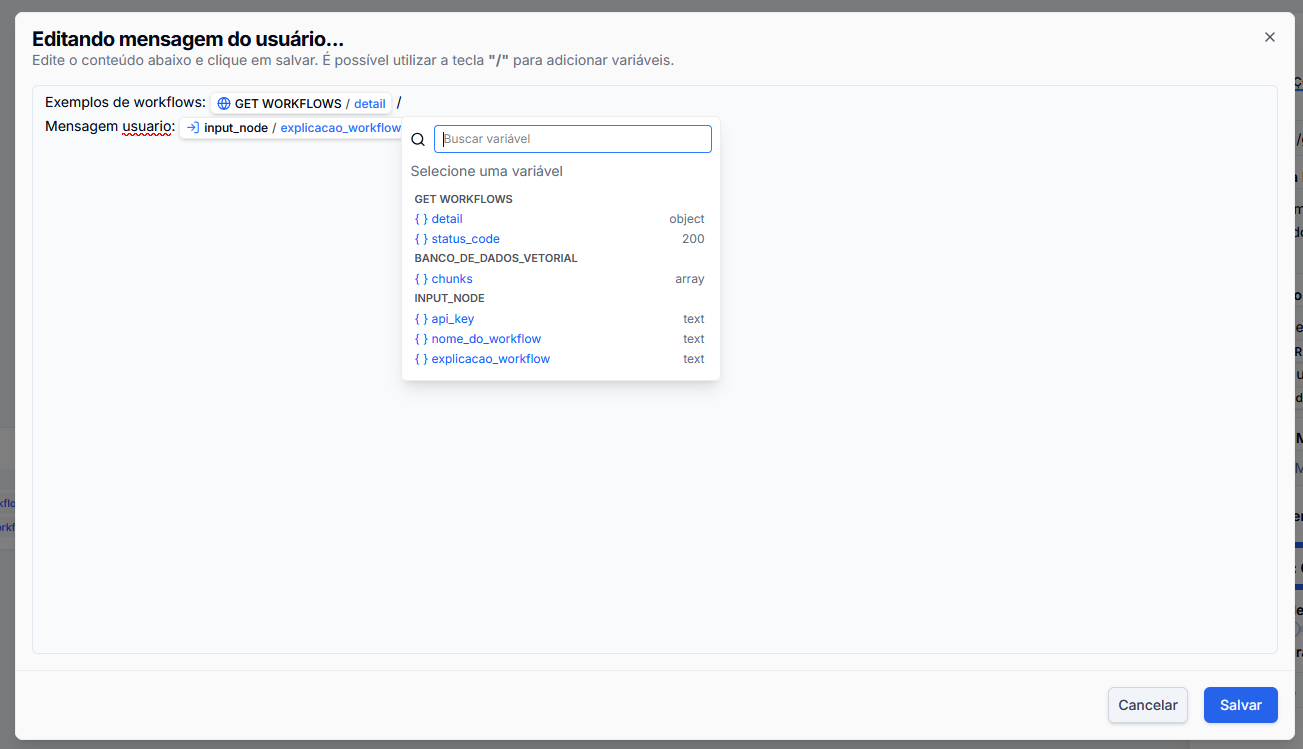
Technical Note: For easier visual reading, the editor displays variables as "labels." However, when consulting the technical documentation or using the API, you will notice they are represented by the double curly brace syntax:
{{node_id.variable_name}}. The system does this conversion automatically.
Catalog of Available Nodes
Below is a list of all available nodes on the platform, organized by category. Click on the node name to see its detailed documentation and configuration parameters.
Input and Output
Defines how data enters and exits the flow.
LLMs (Language Models)
The "brain" of the flow.
- LLM: Processes text using AI models (GPT-4, Claude, etc).
Documents
Tools for processing and reading files.
- File Extractor: Reads content from uploaded files.
- CPF Extractor: Utility specifically for locating CPFs in documents.
- Vector Database: Searches for information in your knowledge base (RAG).
Logic
Flow control and visual programming.
- Condition: Creates flow branches (If/Else) based on rules.
- Aggregator: Consolidates multiple paths into a single output (merge/fallback).
- Iteration: Executes loops to process lists of items.
Integration
Connect your assistant to the external world.
- HTTP Request: Makes API calls to external systems.
- Email: Sends emails.
Code
For advanced and customized logic.
- Code Executor: Allows running scripts (Python/JS) directly in the flow.