How to Start a Conversation
This section explains how to start using the Aumo Chat Platform.
Accessing the Platform
- Go to the chat platform URL:
https://chat.<your_organization>.unia.aumo.live/ - Log in with your credentials (if necessary).
- You will be directed to the main chat interface.
Main Interface
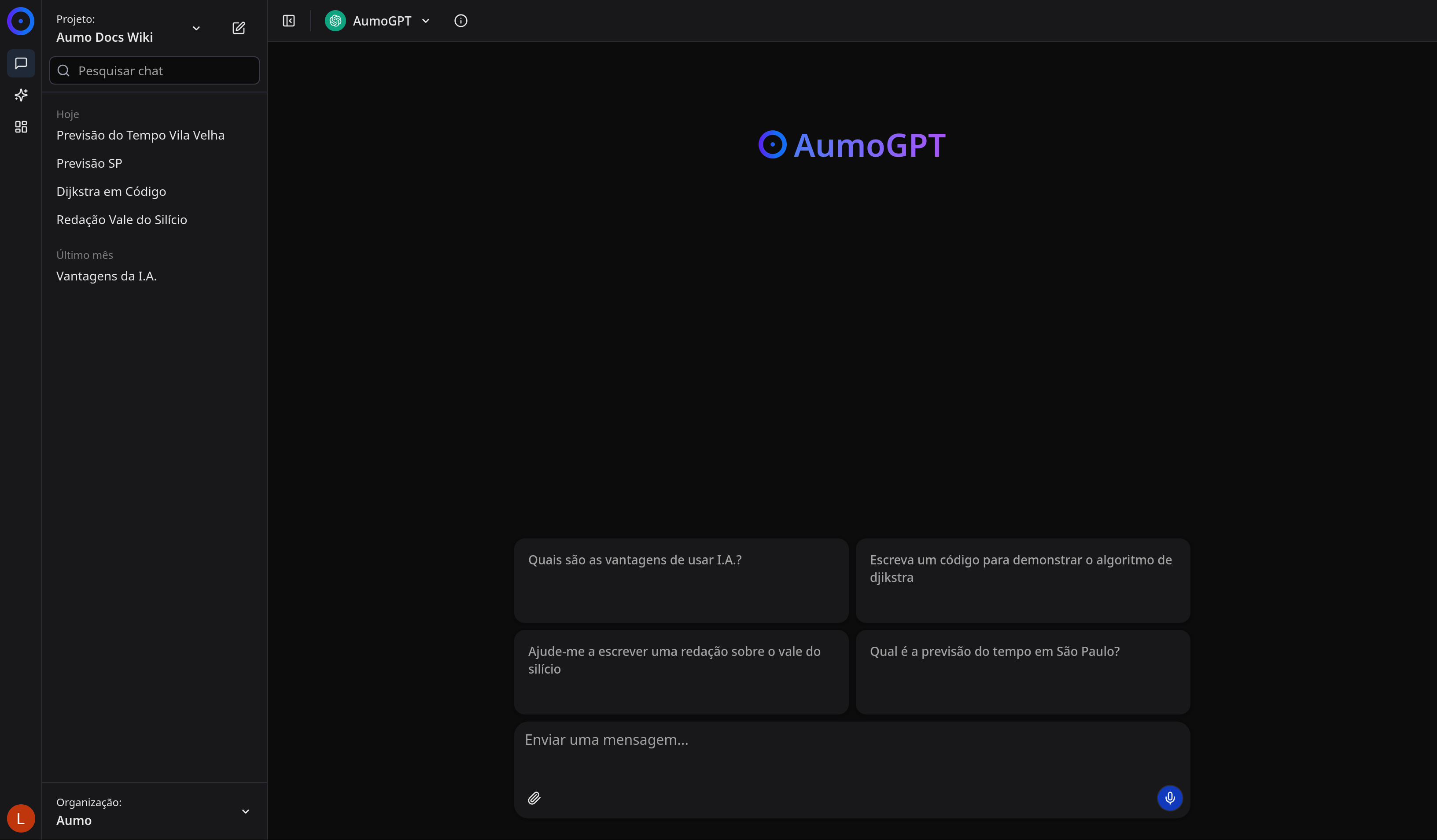
The main interface consists of:
- Left Sidebar: Contains conversation history, project selection, and organization
- Central Area: Where messages are displayed
- Input Field: Where you type your messages
- Action Buttons: Additional tools such as file upload
Starting a New Conversation
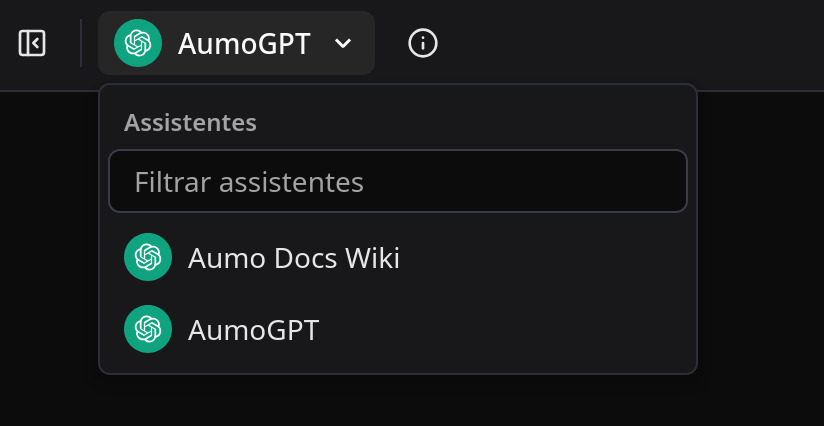
Before starting a conversation, you can choose which assistant you want to use. The assistant selection is available in the header of the page:
Assistant Information
You can access detailed information about the selected assistant through the information menu. This menu contains:
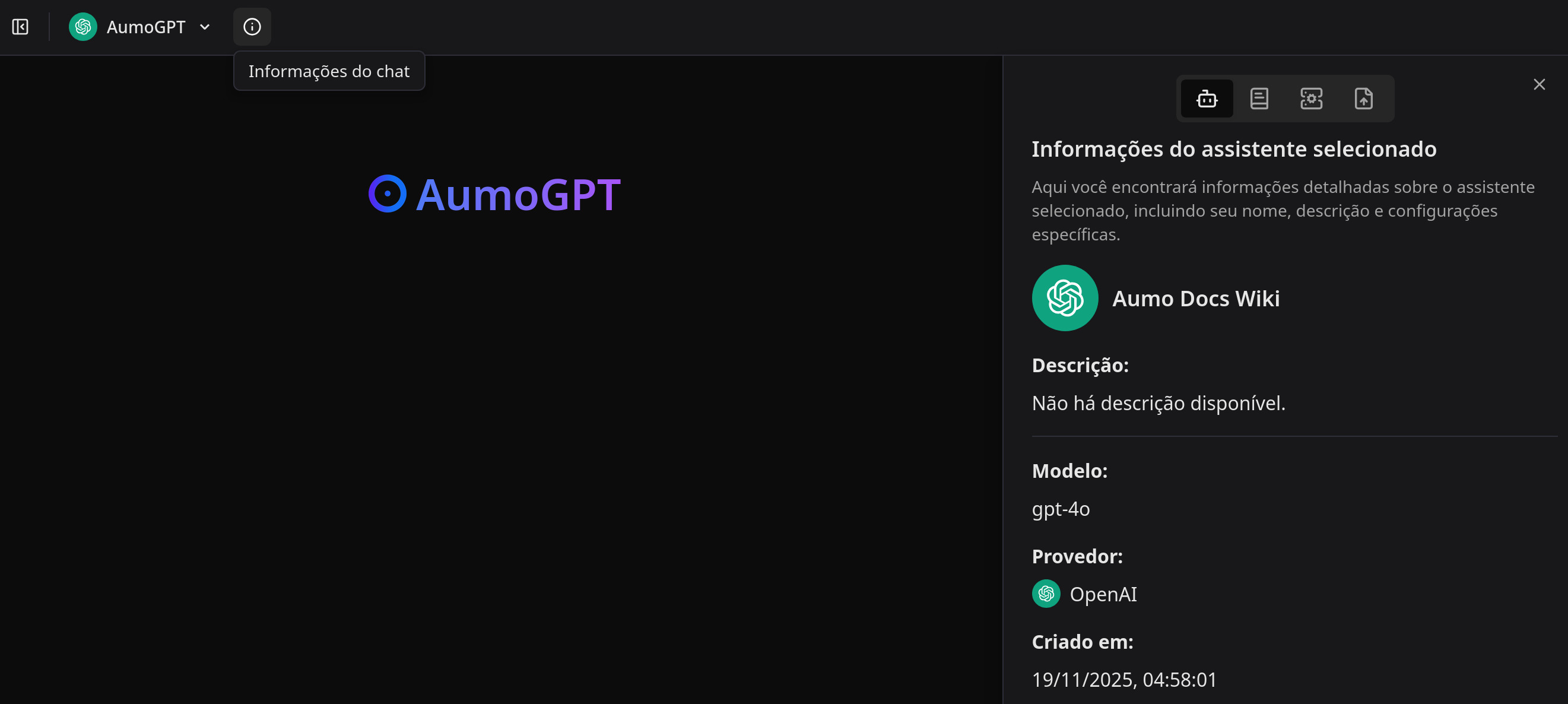
- Description: Description of the assistant and its features
- Model: AI model used by the assistant
- Provider: Provider of the AI model
- Creation Date: When the assistant was created
- Knowledge Sources: Knowledge sources associated with the assistant
- MCP Servers: MCP servers associated with the assistant
- Attached Files: Files that have been attached to the assistant
Method 1: Using Question Suggestions
The platform offers question suggestions in interactive cards to help you get started:
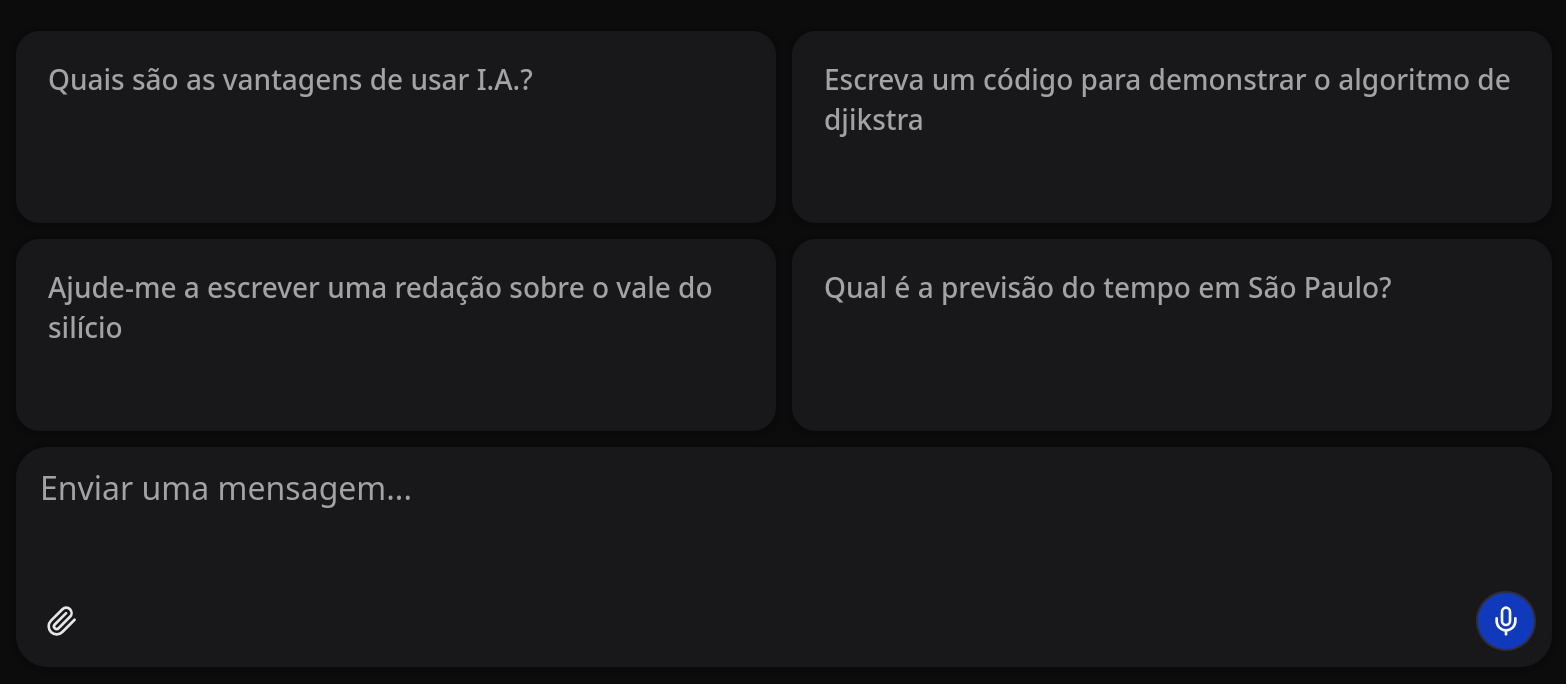
- View the question suggestions displayed in cards on the screen.
- Click on any suggestion card.
- The question will be automatically inserted into the message field.
- Press Enter or click the send button.
Method 2: Typing a Message
- Click on the text field "Send a message..."
- Type your question or message.
- Press Enter or click the send button.
Sending Files
You can attach files to your messages:
- Click on the file upload button (attachment icon).
- Select the file you wish to send.
- The file will be attached to your message.
Next Steps
- Introduction to the Chat Platform - Return to the overview.