Conditional Node
The Conditional Node is the "traffic guard" of your flow. It allows you to create branches in the logic, directing execution to different paths based on the received data.
If you need to say "If the customer requested a refund, go to path A; if not, go to path B," this is the node you should use.
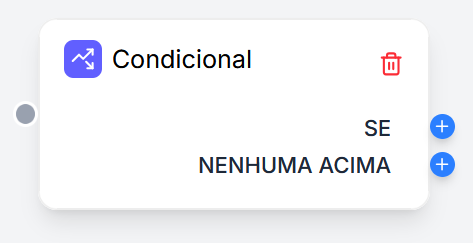
How It Works
Unlike other nodes that have only one output, the Conditional Node has multiple outputs in the canvas.
- The system evaluates the conditions from top to bottom.
- The first group of conditions that is true determines the path.
- If none are true, the flow follows the "NONE ABOVE" path.
Configuration
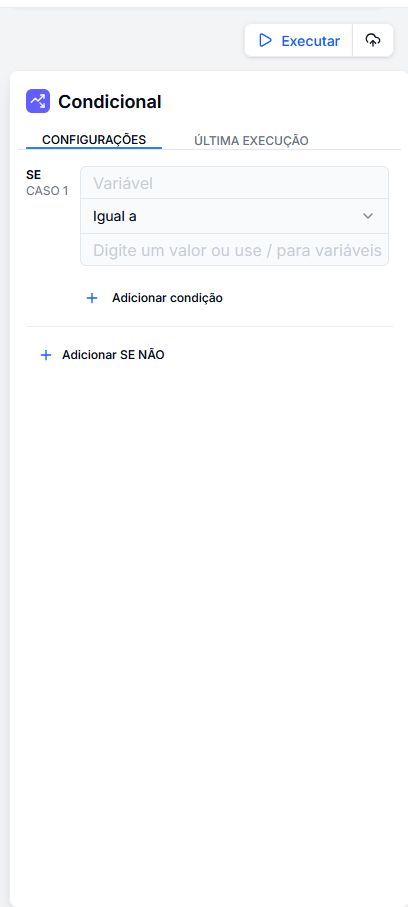
In the side panel, you define the rules for each output path.
Creating Rules (Cases)
Each "Case" corresponds to an output in the visual node. To configure:
- Variable: Select the data to be tested (use
/to search for variables from previous nodes). - Operator: Choose the comparison (e.g., "Equal to," "Contains," "Is null").
- Value: Set the reference value for the comparison (text, number, or another variable).
Groups of Conditions (AND / OR)
You can add multiple conditions within the same case by clicking + Add condition.
- AND: All conditions must be true.
- OR: At least one condition must be true.
Adding Paths
Click on + Add IF NOT to create a new branch (Case 2, Case 3, etc.). Each new group will create a new output connector on the node.
Available Operators
The system offers various logical operators to cover most scenarios:
| Category | Operators | Example |
|---|---|---|
| Text | Equal to, Contains, Starts with, Ends with | Subject contains "Finance" |
| Number | Greater than, Less than, Greater than or equal to | Grade greater than 7 |
| General | Is null, Is not null, Is empty | File is not null (check if upload occurred) |
Connecting in the Canvas
The logical setup directly reflects in the flow layout. After configuring your cases in the panel:
- Look at the node on the canvas. You will see connectors (dots) labeled on the right.
- IF (Case 1): Connect this point to the node that should execute if the first rule is met.
- IF NOT (Case 2): Connect to the node of the second rule.
- NONE ABOVE: Connect to the default flow (fallback), in case no rules are satisfied.
Important: Only one path will be executed. The other nodes connected to the unchosen paths will be ignored.
Usage Examples
1. Customer Service Triage (Router)
Direct the conversation to the correct AI based on the user's intent.
- Case 1: If
{{ classification.intent }}Equal totechnical_support→ Goes to Technical LLM node. - Case 2: If
{{ classification.intent }}Equal tosales→ Goes to Commercial LLM node. - None Above: → Goes to General Support.
2. Content Verification (RAG)
Prevent the AI from hallucinating if it doesn't find information in the knowledge base.
- Case 1: If
{{ vector_database.chunks }}Is empty → Responds "I didn't find this information." - None Above: → Sends the chunks to the LLM to generate the response.