Create a New Knowledge Collection

This guide explains how to create a new knowledge collection on the Aumo platform. The process is divided into three steps: collection details, adding files, and adding sources of knowledge.

Overview

Overview of Collections

When creating a new knowledge collection, you will be creating a container to organize and group related documents. These documents can come from different sources of knowledge or be added directly through upload.

Accessing the Creation Page

New Collection Button

To create a new knowledge collection:

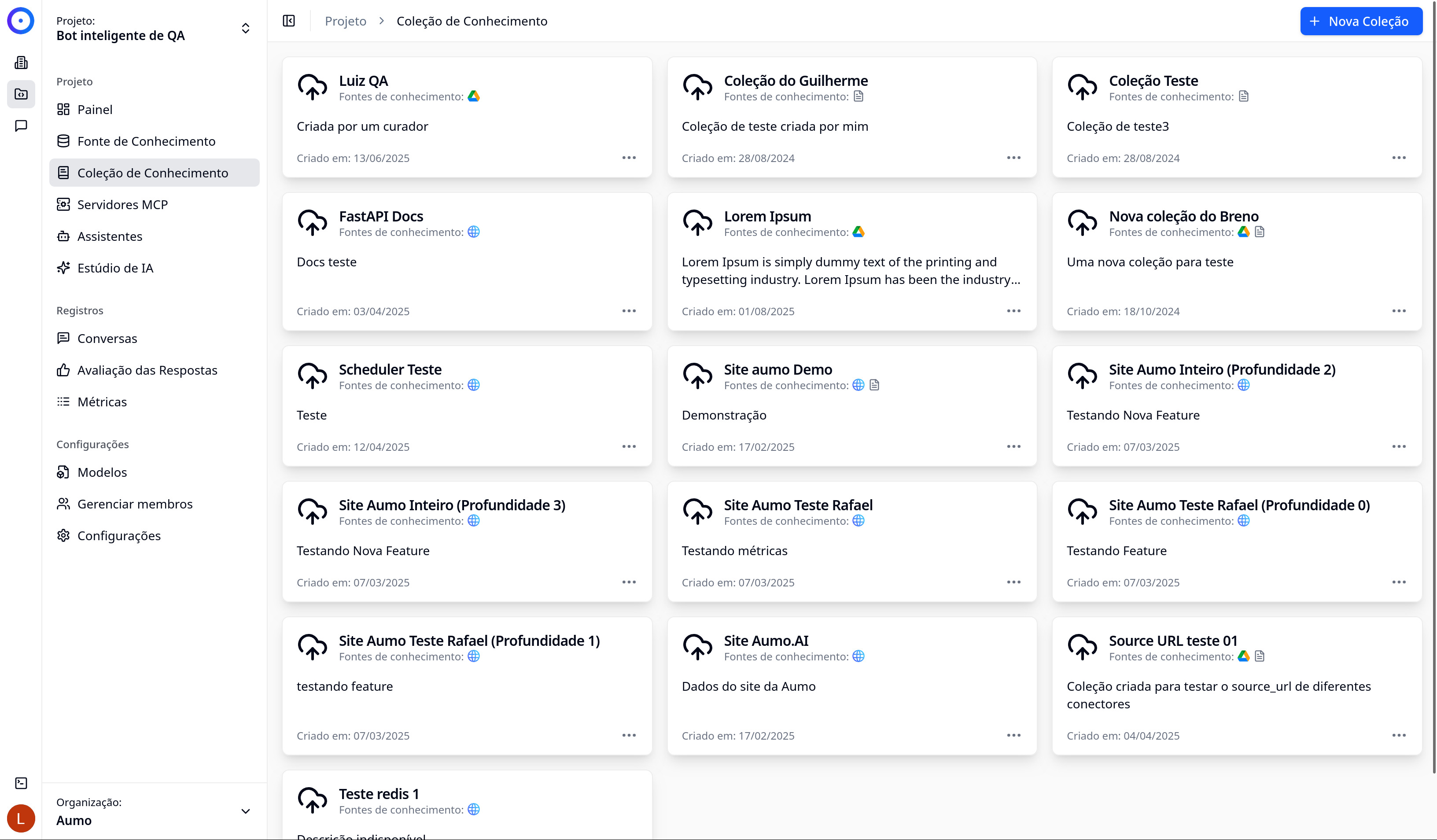
  1. Navigate to the Projects section in the side menu
  2. Select the desired project
  3. Click on Knowledge Collection in the project side menu
  4. Click on the New Collection button at the top of the page

Step 1: Collection Details

Step 1: Details

In the first step, you will configure the basic information of the collection.

Required Fields

Name

  1. In the Name field, enter a descriptive title to identify the collection
  2. The name must be unique within the project

Optional Fields

Description

  1. In the Description field, you can add a more detailed explanation about the purpose and content of the collection
  2. This description helps other users understand what the collection contains

Slots

Slots are custom key-value metadata that can be used for categorization and filtering:

  1. To add a slot, click the Add Slot button
  2. Enter a Key for the slot (e.g., "category", "department", "type")
  3. Enter a Value for the slot (e.g., "documentation", "HR", "manual")
  4. Click the confirmation button (✓) to add the slot
  5. You can add multiple slots as needed

Example of using slots:

  • Key: "category", Value: "technical documentation"
  • Key: "department", Value: "IT"
  • Key: "priority", Value: "high"

Proceeding to the Next Step

  1. Fill in at least the Name field (required)
  2. Optionally, fill in the Description and add Slots
  3. Click the Next button to proceed to the next step

Note: The Next button will only be enabled after filling in the required field (Name).

Step 2: Add File

In the second step, you can add documents directly to the collection through upload.

How to Add Files

  1. You will see an interface to upload files
  2. Drag and drop files into the indicated area, or click to select files from your computer
  3. The files will be processed and indexed automatically after upload
  4. You can add multiple files in this step

Supported Formats

The platform supports various file formats, including:

  • Documents: PDF, DOC, DOCX, TXT, MD
  • Spreadsheets: XLS, XLSX, CSV
  • Presentations: PPT, PPTX
  • Audio: MP3, WAV, OGG, FLAC
  • Images for OCR: JPG, JPEG, PNG
  • Other text formats like JSON and .py

Proceeding to the Next Step

  1. Add the desired files (or skip this step if you prefer to add files later)
  2. Click Next to proceed to the final step

Step 3: Add Source of Knowledge

In the third step, you can connect existing sources of knowledge to the collection.

How to Add Sources of Knowledge

  1. You will see a list of available sources of knowledge in the project
  2. Select the sources of knowledge you wish to add to the collection
  3. You can select multiple sources of knowledge
  4. The documents from the selected sources will be automatically associated with the collection

Finalizing Creation

  1. Review all information provided in the three steps
  2. Click Create or Save to finish creating the collection
  3. A message "Collection created" will appear, confirming that the collection was successfully created

Collection created successfully

After Creation

After creating the knowledge collection:

  1. The collection will appear in the list of collections for the project
  2. The added documents will be automatically processed and indexed
  3. You will be able to manage the collection and add more documents at any time
  4. The collection will be available for use in AI assistants

Next Steps

Important Notes

  • The name of the collection must be unique within the project
  • Slots are optional but can be useful for organization and filtering
  • You can add documents and sources of knowledge after creating the collection
  • Processing documents may take some time depending on the amount of content