How to Create a New Assistant
This guide describes the complete flow for creating an assistant on the Admin Platform, whether it uses knowledge augmented retrieval (RAG) or is purely conversational.
Overview
When creating an assistant you define:
- Basic information (name, type, logo, description)
- AI model (provider and model version)
- Knowledge collections (when RAG is enabled)
- Optional sub-agents (other assistants or agents used as a tool)
- Optional MCP servers
- Behavior and instructions (prompts and response parameters)
The With RAG assistant follows a 6-step wizard: Assistant Details → Model Selection → Collection Selection → Sub-agent Selection → MCP Server Selection → Behavior and Instructions.
Create from a template (Beta): besides Create from scratch, the New assistant dropdown offers a Create from a template option (flagged as Beta), which starts from a pre-configured assistant. This guide covers the Create from scratch flow.
Prerequisites
- Have at least one configured provider/model
- Have ready Knowledge Collections if you wish to use RAG
- Access permission at CURATOR level or higher to the project where the assistant will be created
Walkthrough
Follow the complete flow — from the assistants list to the behavior and instructions screen:

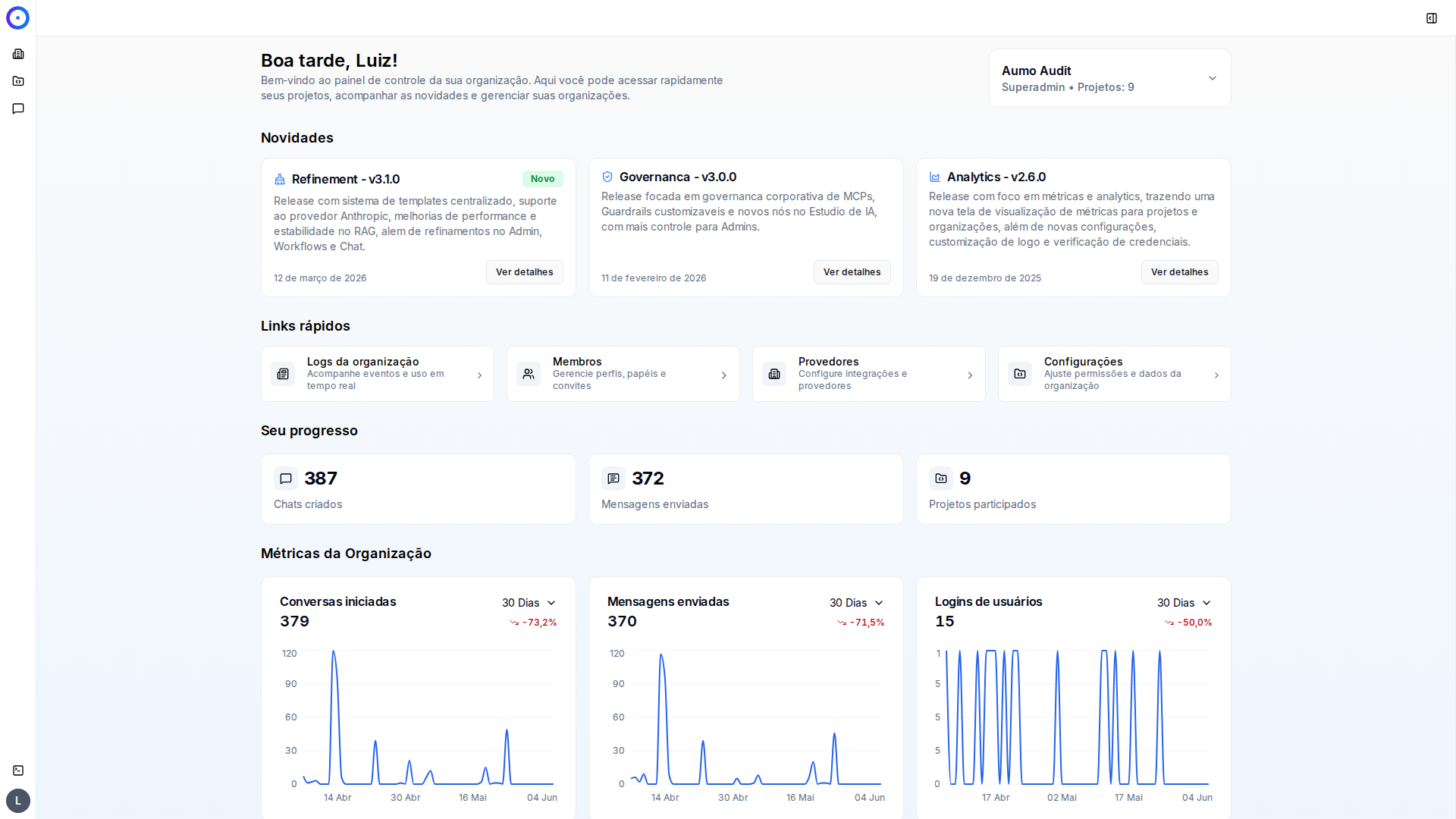
You start at your organization's home panel. In the left menu, click the Organization icon to enter administration.
Step-by-Step Details
Step 1: Access the Creation Page
- Log in to the admin platform.
- In the main sidebar menu, select Projects and choose the desired project.
- Click on Assistants in the project sidebar menu.
- Press the New assistant button in the upper right corner and choose Create from scratch.
Step 2: Assistant Details
Fill in the following fields:
- Name (required): A descriptive name to identify the assistant
- Type of assistant (required): Choose between:
- With RAG: For assistants that use knowledge augmented retrieval
- Without RAG: For conversational assistants without access to knowledge collections
- Enable assistant as tool: A toggle that lets this assistant be selected as a sub-agent in other assistants or agents, increasing its versatility and integration. See Sub-agents.
- Assistant logo: Choose one of the predefined logos to represent the assistant. By default it shows "No logo selected — Click to choose a logo."
- Description: An optional description of the assistant's purpose and functionalities
Step 3: Select the Model
- Review the available models in the list
- Click on the desired model (e.g., "GPT-4o")
- Select the specific version of the model in the "Select version" dropdown
- You can click on the information icon (ⓘ) to see details of the model, including:
- Token limits (input and output)
- Costs per token
- Capabilities (Function Calling, Vision, etc.)
- Available versions
Step 4: Select Collections (With RAG)
If you selected "With RAG" in the details step, this step allows you to select the knowledge collections:
- Select Knowledge Collections: Click on the cards of the collections you want to use. The selected collections will appear highlighted.
- You can select multiple collections to combine different sources of knowledge.
- Configure the number of documents retrieved and adjust fields like search temperature and token limits.
See how to create a collection before proceeding. To create collections or sources, also refer to the Introduction to Knowledge Collections and the Introduction to Knowledge Sources.
Step 5: Sub-agent Selection (optional)
In this step you can enable sub-agents — assistants and agents inside the project that have been configured to be used as tools. The orchestrator (this assistant) can invoke them during execution.
The Select sub-agents picker is organized into two tabs:
- Assistants: other project assistants enabled as a tool.
- Agents: AI Studio flows made available as a sub-agent.
Each tab shows the count of available items (e.g., Assistants (0), Agents (28)). Check the desired sub-agents; if none are enabled, the tab shows "No assistant available as a sub-agent".
Important: the sub-agents feature relies on function calling. If the model chosen in Step 2 does not support it, the screen shows "The sub-agents feature is not supported by this model. It is not possible to select sub-agents." For details, see Sub-agents.
Step 6: Select MCP Servers (optional)
You can enable MCP integrations to allow the assistant to perform external actions:
- Configure the Maximum Tool Iterations: Define how many times the tools can be executed in sequence.
- Select the MCP servers: Click on the servers you wish to enable (maximum of 5 servers).
- The selected servers will appear highlighted.
See how to install an MCP server before proceeding. Once installed, it will appear available in this selection step.
To select MCP servers, you must first install them in the MCP Servers section of the project.
Step 7: Behavior and Instructions
In the final step, configure the workflow details and prompts of the assistant:
- Number of Retrieved Fragments: Define how many document fragments will be retrieved for context.
- Retrieve full documents: Check this option if you want to retrieve full documents instead of just fragments.
- Edit your prompts:
- Rephrase Question: Prompt that reformulates the user's question independently of the conversation context.
- Respond to User: Prompt that guides how the assistant should respond based on the provided context.
After reviewing all configurations, click Create to finish creating the assistant.