How to Create a Provider
This guide explains step by step how to create a new AI provider on the Aumo platform.
Overview
Creating a provider is a two-step process:
- Provider Selection: Choose the type of provider and the model you wish to set up
- Provider Details: Configure the credentials and other necessary information
Step by step
Follow the full flow — accessing the Providers area, selecting the provider type, reviewing available models, and configuring the credentials:

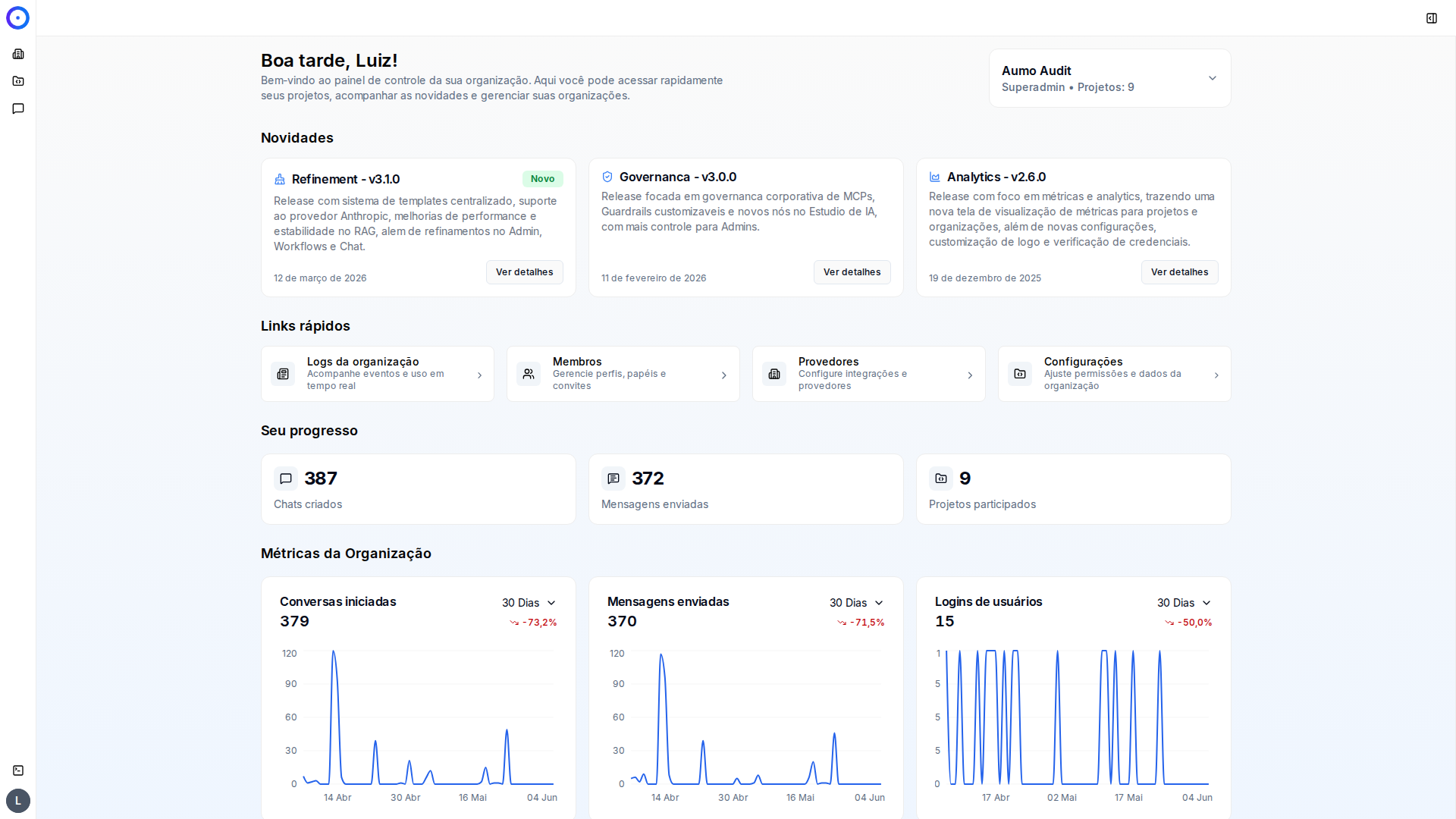
Step 1 / 9Start on the home dashboard
You start on your organization's home dashboard. In the left menu, click the Organization icon to enter the organization administration.
Next Steps
After creating the provider, you can:
- View the provider in the providers list
- Edit the provider's settings
- Manage the available models
- Monitor usage and costs
Tips
- Make sure you have the necessary credentials before you start
- Review the technical specifications of the model before selecting it
- Some models may have specific configuration requirements