Chat Features
This section details all the functionalities and tools available on the Chat Platform.
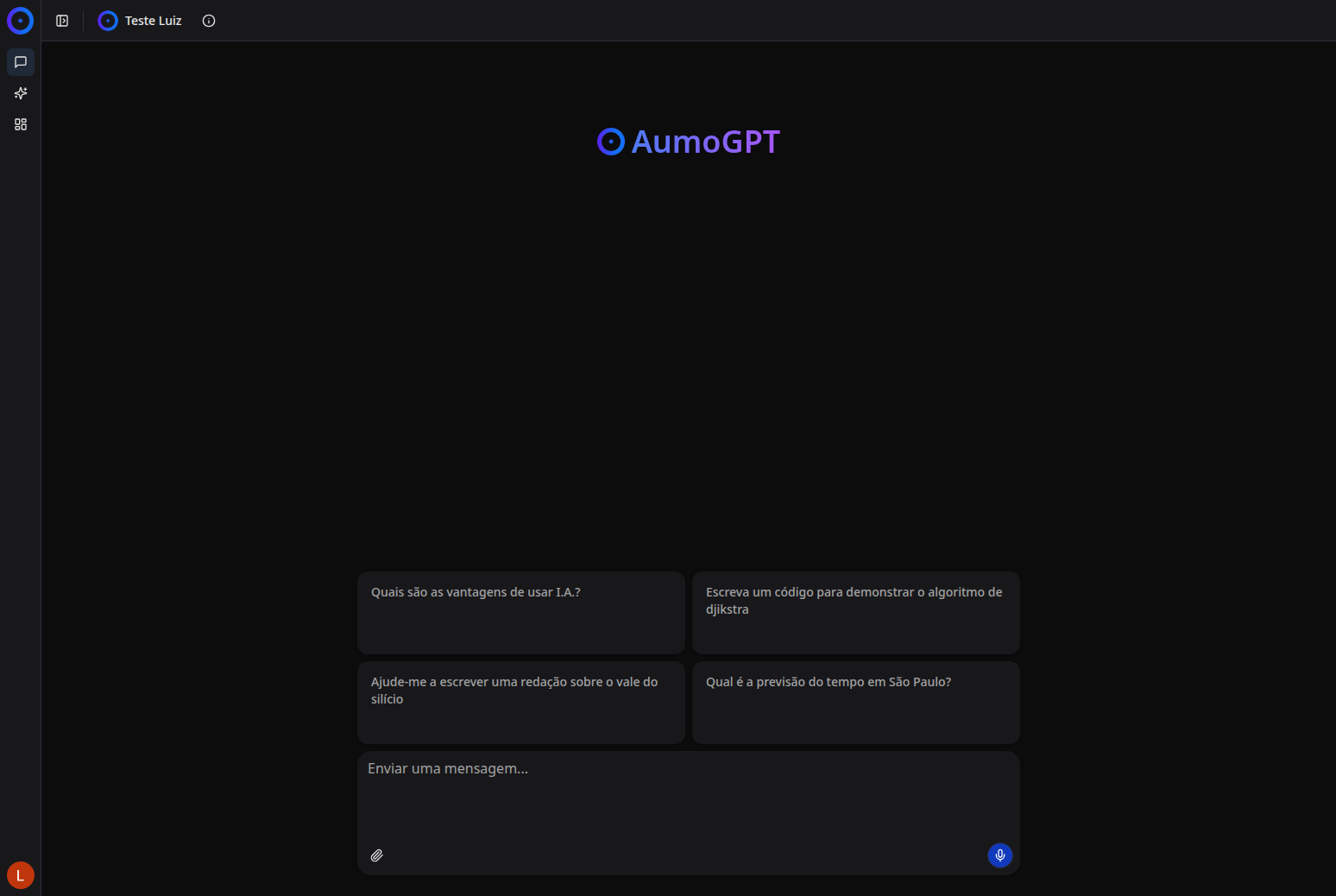
Complete Interface
Left Sidebar
Navigation Menu
The left sidebar contains:
1. Project Selection
- Current Project: Displays the selected project (e.g., "Aumo Docs Wiki")
- Switch Project: Click the button next to switch projects
2. Conversation Search
- Search Field: Type to search previous conversations
- Use this field to quickly find specific conversations
3. Conversation History
Lists all your previous conversations, organized by:
- Conversation Title: Name or first message of the conversation
- Quick Access: Click on any conversation to continue it
- Options Menu: Each conversation has a menu for additional actions
4. Organization Selection
- Current Organization: Displays the selected organization (e.g., "Aumo")
- Switch Organization: Click to toggle between organizations
Main Chat Area
Header
The header contains:
- Hamburger Menu: Opens/closes the sidebar
- User Name: Displays your name and email
- Settings Menu: Access to settings and preferences
Message Area
- User Messages: Appear on the right
- Assistant Responses: Appear on the left
- Typing Indicator: Shows when the assistant is processing
Input Field
The input field includes:
- Text Box: Where you type your messages
- Send Button: Sends the message (or press Enter)
- Upload Button: Allows file attachments
Question Suggestions
The platform offers intelligent question suggestions to help you get started:
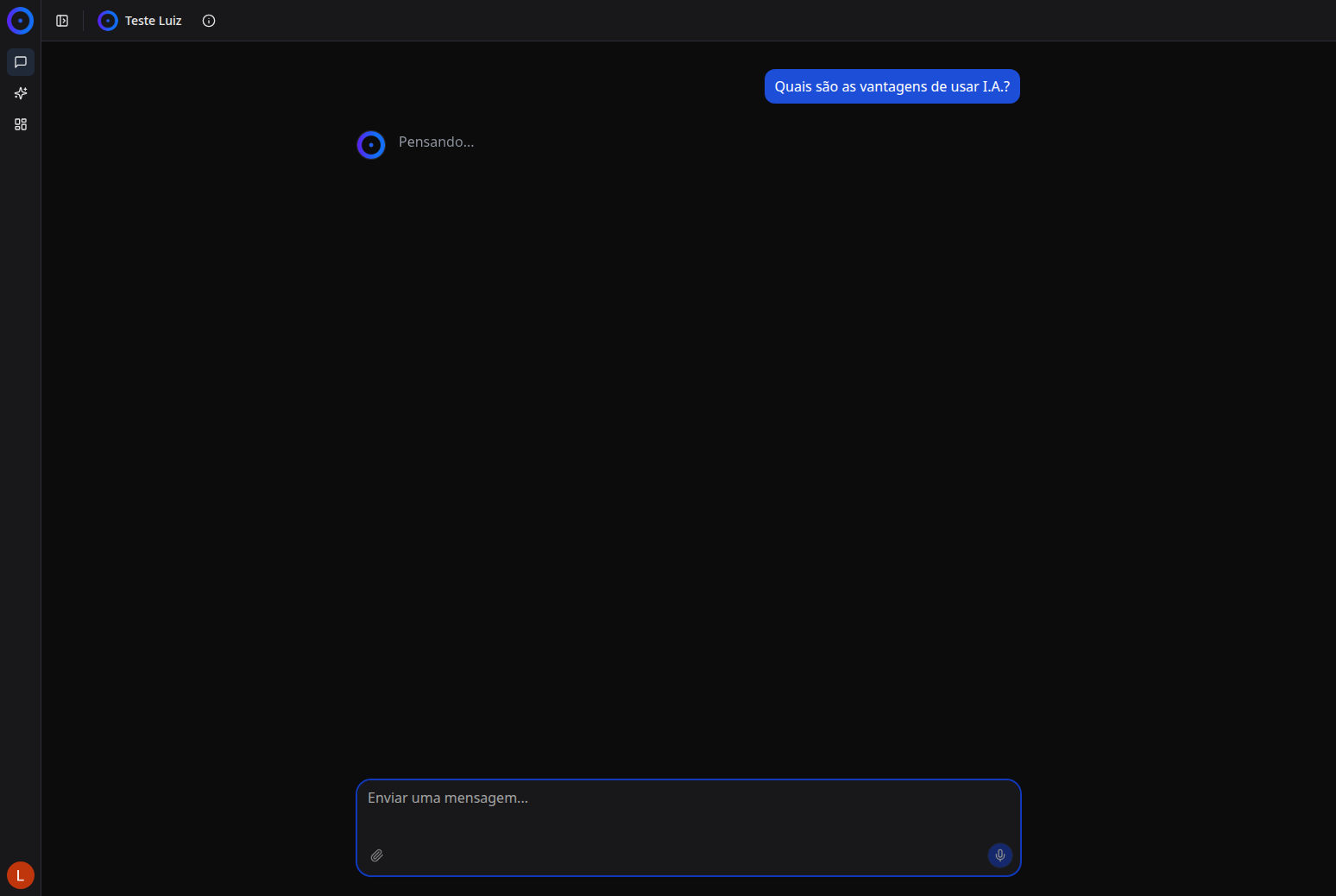
The suggestions are presented in interactive cards that you can click directly:
- Contextual Questions: Based on the project and available knowledge
- Click to Use: Click any suggestion card to use it
- Dynamic Updating: Suggestions change according to context
- Grid Layout: Suggestions are organized in a 2x2 grid for easy viewing
Advanced Features
File Upload
You can send files for analysis:
- Click the upload button (clip icon)
- Select the desired file
- The file will be processed and included in the conversation context
Conversation History
- Continue Conversations: Resume previous conversations
- Search: Quickly find specific conversations
- Organization: Conversations organized by date and project
Project Selection
Each project can have:
- Different Assistants: Configured specifically for the project
- Knowledge Sources: Specific documents and knowledge bases
- Customized Settings: Project-specific adjustments
Assistant Selection
You can choose between different assistants available in the project:
- Assistants Dropdown: Click the name of the current assistant to see all options
- Assistant Filter: Use the search field to find specific assistants
- Assistants by Project: Each project may have its own configured assistants
Usage Tips
- Use Suggestions: The question suggestions help understand what you can ask
- Be Specific: The more specific your question, the better the answer
- Use Context: Reference previous messages when necessary
- Explore Projects: Different projects may have different capabilities
Next Steps
- Conversation History - Learn how to manage your conversations
- Advanced Features - Advanced functionalities